Connect iPhone & Apple Watch
Follow these steps to set up CourtsidePlay on both your iPhone and Apple Watch, configure your first match, and start collecting advanced analytics from the court.
iPhone
Configure matches, set player names, choose format and review analytics after the game.
Apple Watch
Track score point-by-point on your wrist while sensors capture every swing, spin and heart rate.
Auto-Sync
Watch and iPhone stay in sync wirelessly. When the match ends, all data flows automatically to the iPhone app.
Instant Analytics
Open the match summary on iPhone for a full breakdown — shots, spin, rally length, fatigue and readiness.
Getting Started
From install to your first tracked match in under 5 minutes.
Install the App on Both Devices
Download CourtsidePlay from the App Store on your iPhone. The Apple Watch companion app installs automatically — make sure your Watch is paired and nearby during the install.
- Requires iPhone with iOS 17 or later
- Requires Apple Watch with watchOS 10 or later
- Both devices must be signed into the same Apple ID
If the Watch app doesn't install automatically, open the Watch app on iPhone → App Store → search for CourtsidePlay and tap Install.
Grant Health & Motion Permissions
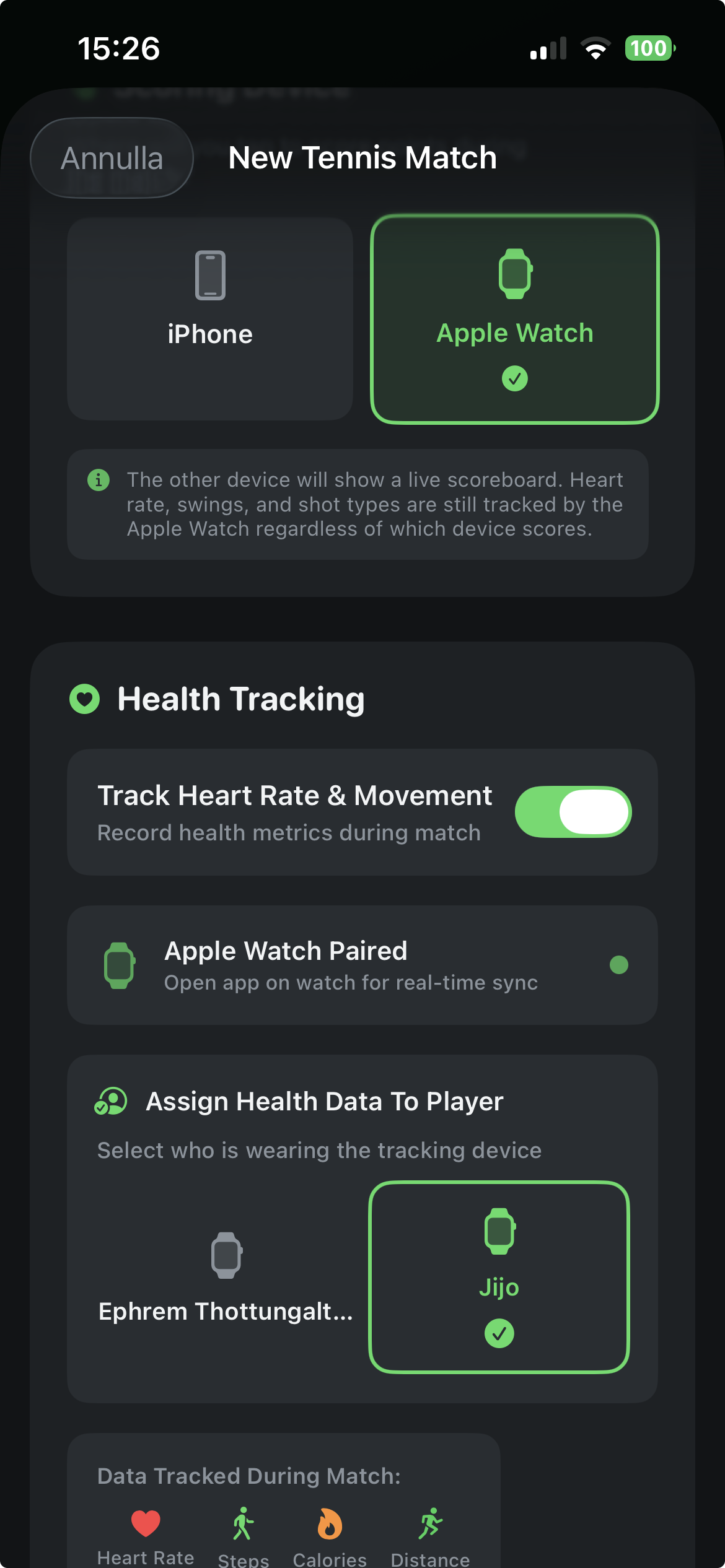
On first launch, CourtsidePlay asks for HealthKit access to read HRV, resting heart rate, sleep and training load for the Match Readiness score. Grant all requested permissions for the full analytics experience.
- Health data — HRV, heart rate, sleep, workouts
- Motion & fitness tracking on Apple Watch
- Local notifications (optional — for session reminders)
You can review or change permissions later in iPhone Settings → Privacy & Security → Health → CourtsidePlay.
Create a New Match
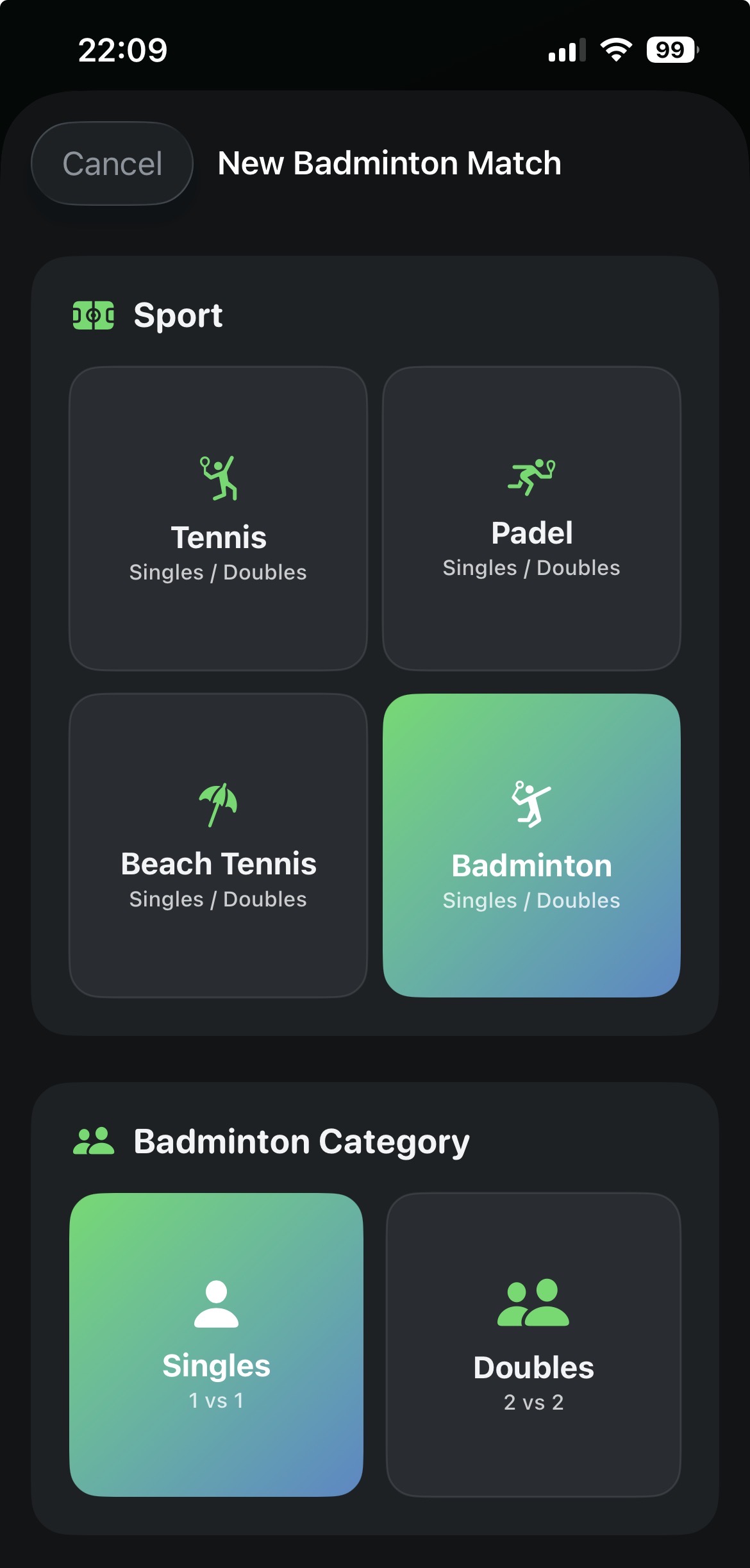
Tap the + button on the Matches screen to set up your game. Fill in both player names, choose your sport (Tennis, Padel, Beach Tennis or Badminton), and select the match format. Badminton defaults to BWF rally scoring (21 points, best of 3); Beach Tennis defaults to a 10-point match tiebreak in the deciding set.
- Player 1 (you) — the wrist wearing the Watch
- Player 2 — your opponent
- Format: Best of 1, 3 or 5 sets; tiebreak options
- Sport: Tennis, Padel, Beach Tennis or Badminton
Start the Match — Watch Syncs Automatically
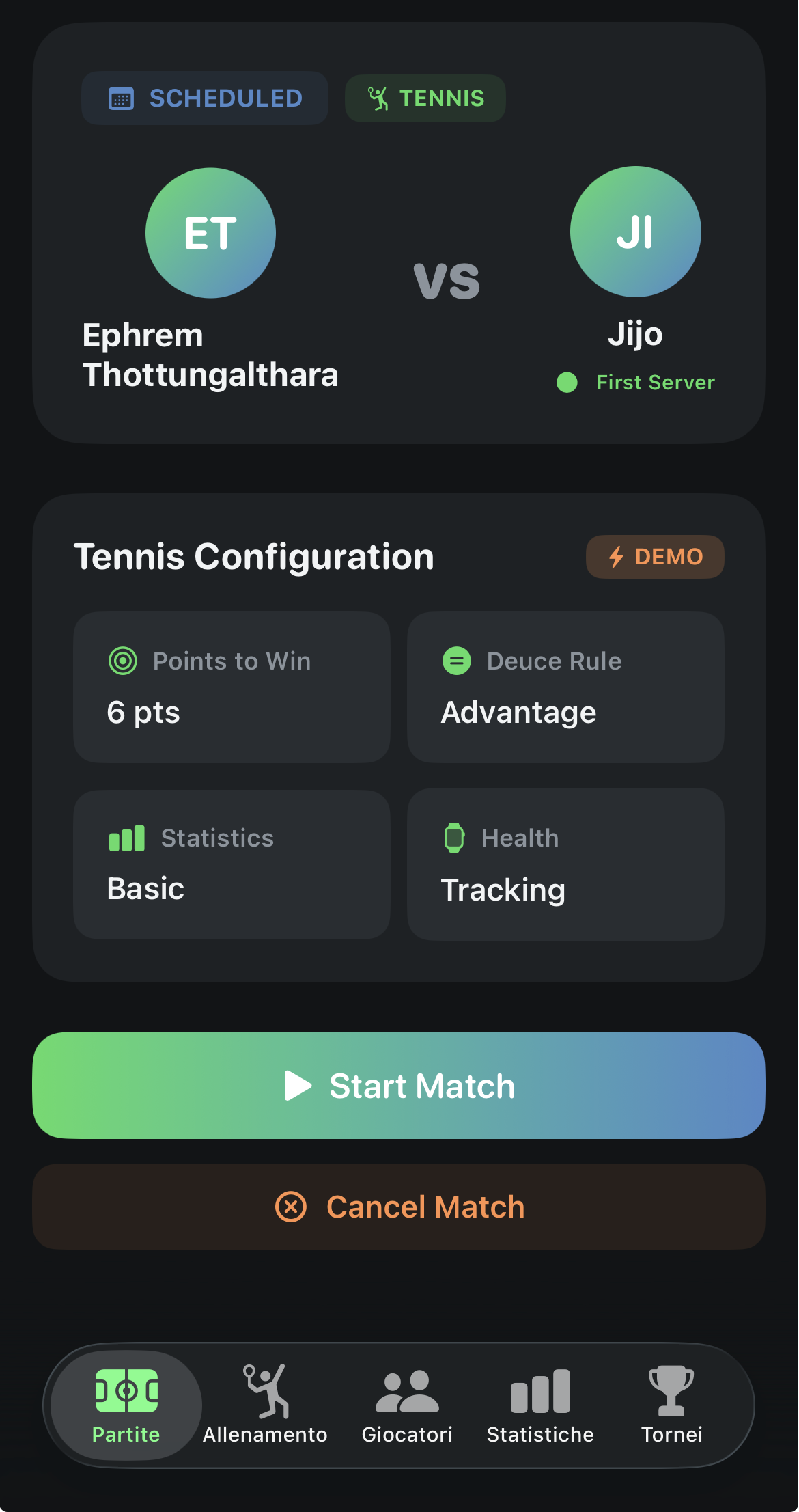
Tap Start Match on iPhone. The session is sent wirelessly to your Apple Watch via WatchConnectivity. Within a few seconds the Watch screen switches to the live score view — no extra tapping on the Watch required.
Keep your Apple Watch and iPhone within about 15 metres of each other for the most reliable Bluetooth link during play — direct line-of-sight helps when possible. Leaving your iPhone on the bench beside the court works well: safely out of the way while you play, yet close enough to stay synced. A pocket or court-side bag works too.
Track Score on Your Wrist
The Watch shows the current score — game, set and match. After each point, tap the crown or use the on-screen buttons to record who won. The watch automatically logs the timestamp, your heart rate and any swings detected during that point.
- Tap Player 1 area — you won the point
- Tap Player 2 area — opponent won the point
- Long-press to undo the last point
- Sensor data (swing, HR) is collected automatically — no extra input needed
How it looks on Apple Watch — left to right, the flow during your match:
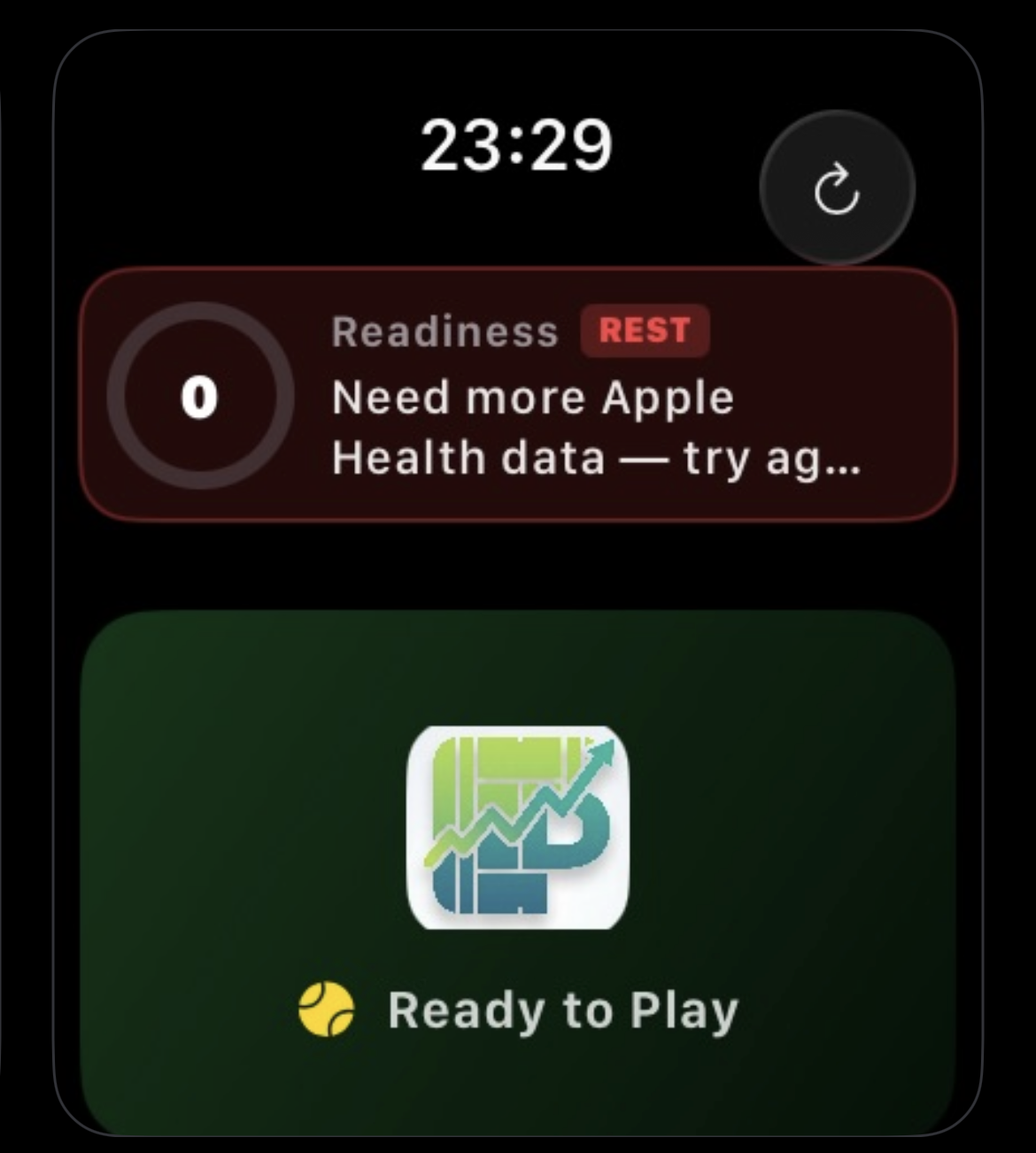 ① Live scoring — games, sets and match at a glance
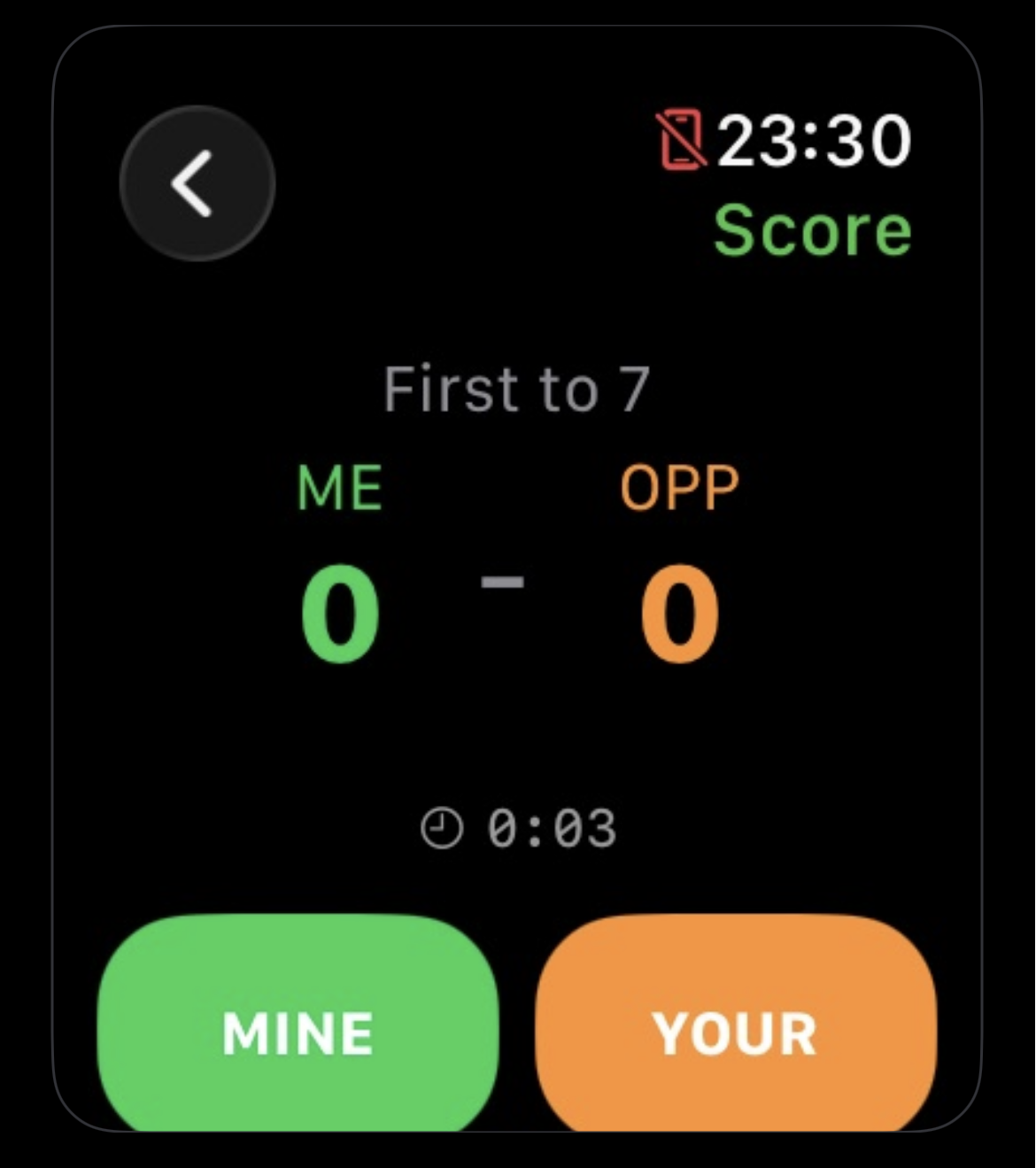 ② After each rally — tap to record who won the point
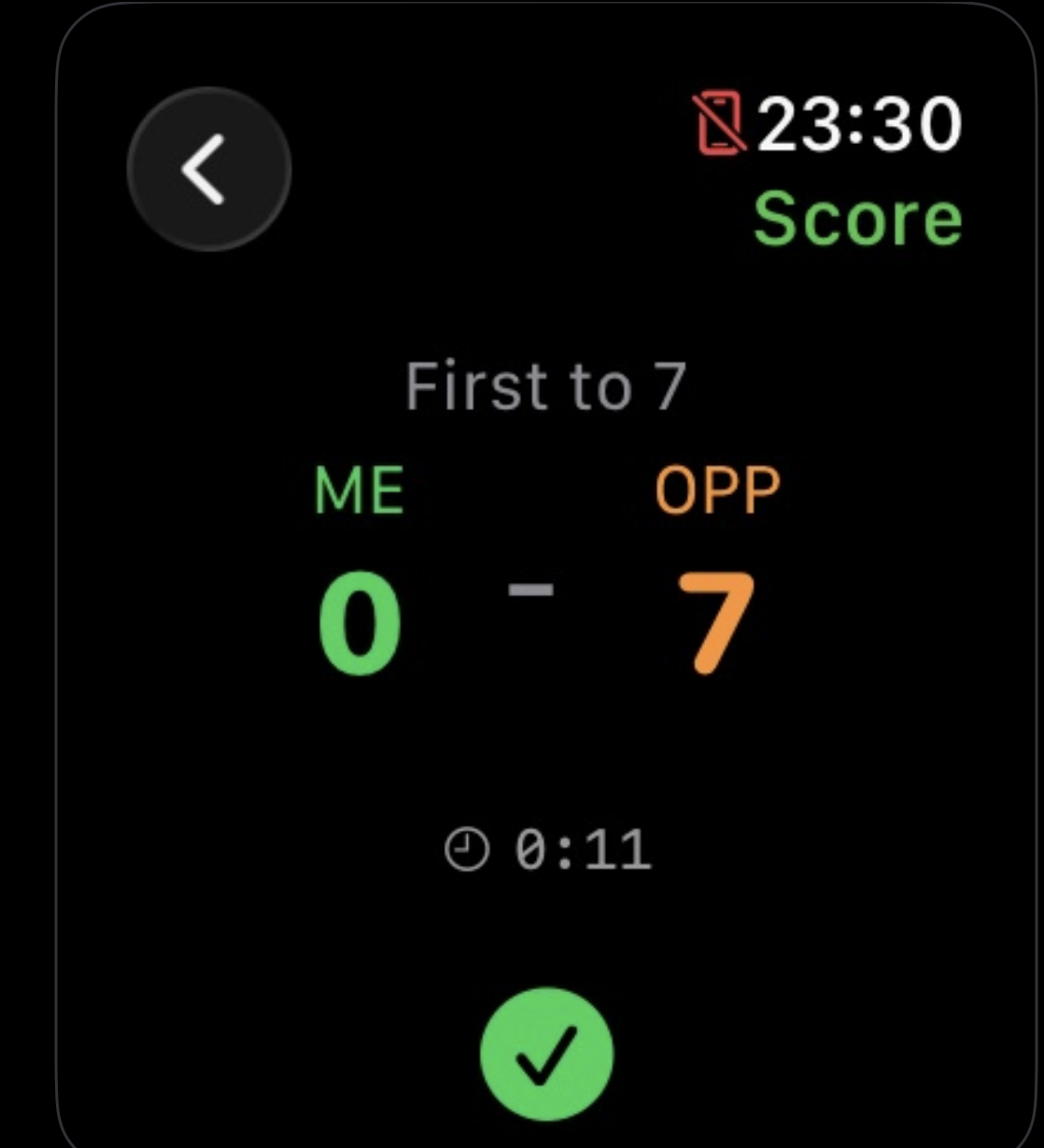 ③ While you play — swing motion and heart rate are tracked in the background
Wear the Watch on your dominant wrist (racquet hand) for the most accurate swing and spin detection. You can change the wrist setting in the Watch app on iPhone if needed.
End the Match & Review Analytics
When the match concludes the Watch saves the full session and syncs it to iPhone automatically over Bluetooth or Wi-Fi. Open the match in the CourtsidePlay iPhone app to access all six analytics modules.
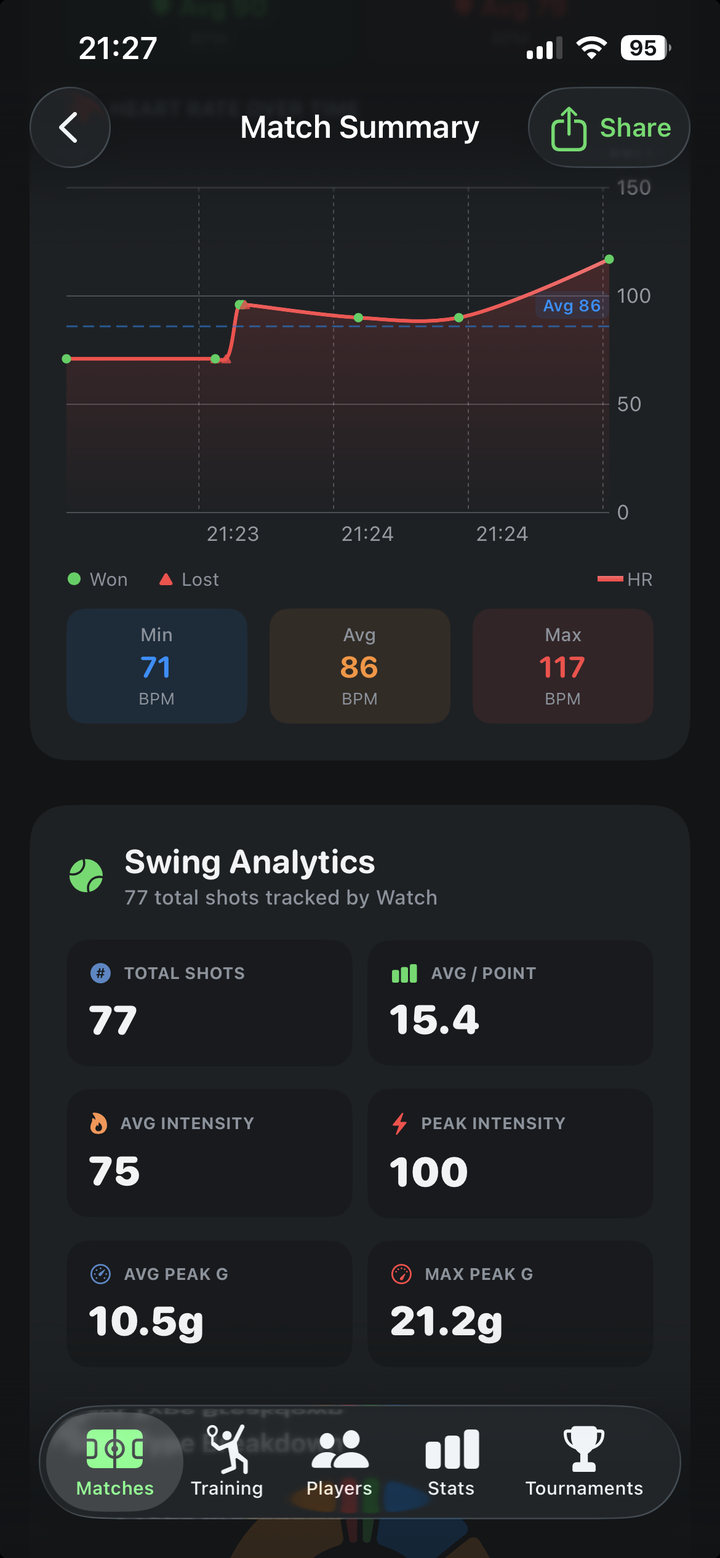 Swing & shot data synced from Watch to iPhone
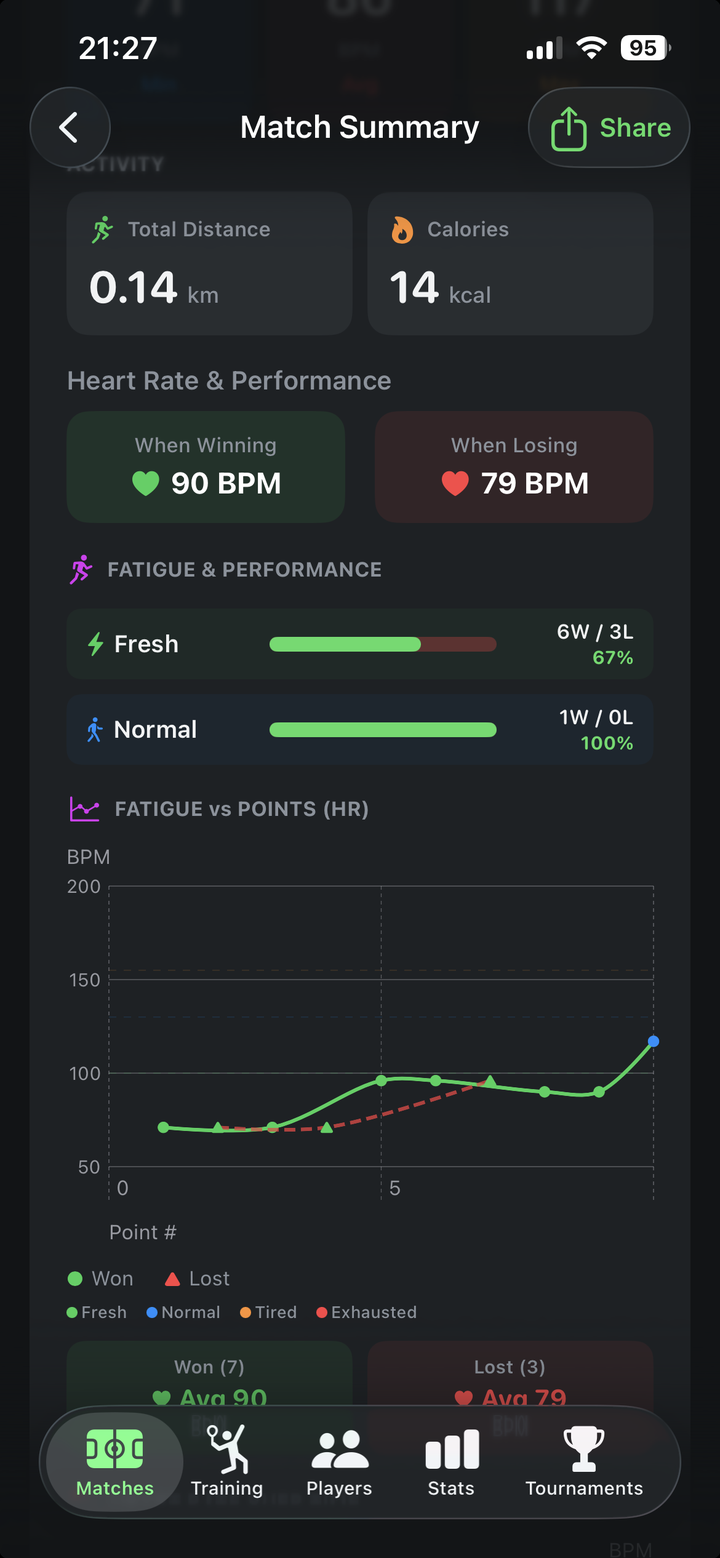 Health & fatigue analysis powered by HealthKit
Six Analytics Modules
Once the match data syncs to your iPhone, explore every dimension of your game.
Swing Analysis
Total shots, intensity, peak G-force — every swing from the whole match.
Shot Type Detection
Serves, forehands, backhands, smashes, slices and drop shots auto-classified.
Intensity & Rally Length
Win rates across 1–3, 4–8, 9–15 and 15+ shot rally buckets.
Spin Distribution
Topspin vs flat vs slice — your shot-shape breakdown from wrist rotation.
Match Readiness
0–100 readiness score from HRV, sleep, resting HR and training load.
Fatigue vs Performance
Win rates at each fatigue level — Fresh, Normal, Tired, Exhausted.
Ready to Play?
Download CourtsidePlay and start tracking your first match today. No subscription, no extra hardware — just your iPhone and Apple Watch.